Cozi Calendar Display: Put Your Cozi Calendar on a Wall Screen
Cozi has no wall display of its own — it's a phone app, and there's no Cozi screen to buy. But Cozi does hand out a shareable calendar URL, and any display that reads calendar feeds can subscribe to it. So you can put the family's Cozi calendar on a screen in the kitchen today, on a screen you already own.
Two parts: get the URL out of Cozi, then point something at it.
Part 1 — get your Cozi calendar URL
Do this on a computer; the flow is easier to reach than in the app.
- Sign in to Cozi in a browser.
- Open Settings from the menu on the left of your account page.
- In the calendar section, open Shared Cozi Calendars. A window lists everybody in the family.
- Switch the calendar you want from Unshared to Shared.
- Press View or send Cozi URL, then Copy Cozi URL.
What you get is a long https:// address on a cozi.com server, ending in .ics. The long
random string in the middle is the part that matters — that's the bit standing in for
a password.
You don't need Cozi Gold for this; the shared calendar link is part of the free account.
Each family member is a separate feed. If you want two children's calendars on the screen, share each of them and copy both URLs. Most displays merge several feeds into one agenda, so two links don't mean two lists.
Treat the URL like a password. There's no sign-in at the other end — the random string in the address is what stands in for one — so anyone holding the link can read that calendar until you set it back to Unshared. Keep it out of screenshots, shared documents and group chats.
Part 2 — put it on a screen
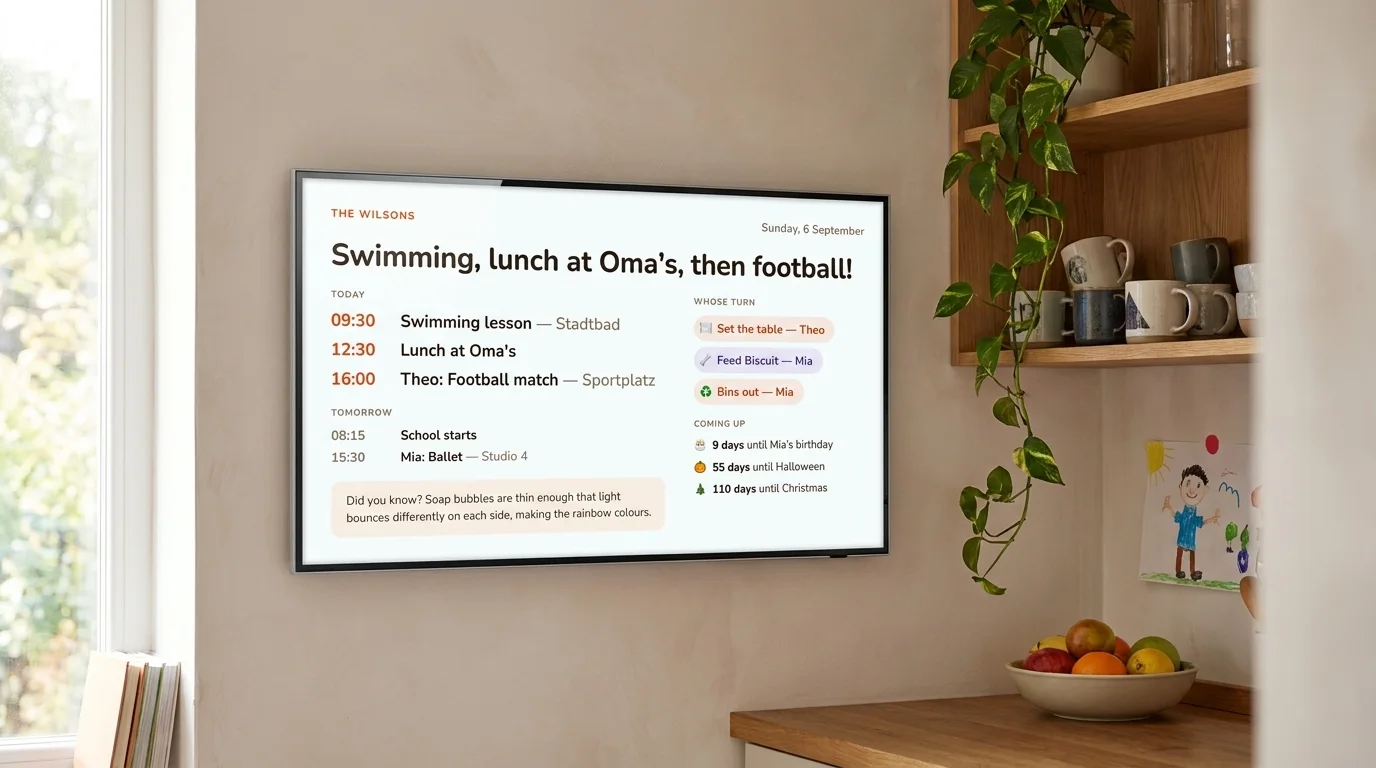
DinkyDash is open-source software that does exactly that. We can host it for you ($39 a year after a 14-day free trial), or you can run it yourself for free. It turns a screen you already own into a family dashboard: today's events, a chore chart that rotates between people by itself, countdowns to birthdays and holidays, and a short line written fresh each day by AI. It runs in a browser, so an old tablet, a spare monitor, a TV or a Raspberry Pi will all do.
Which screen? An old iPad or an Android tablet is the cheapest good panel, a Raspberry Pi the tidiest, and a smart TV or Fire TV will show it on the big screen. There's one device it doesn't work on, and the Echo Show page says why.
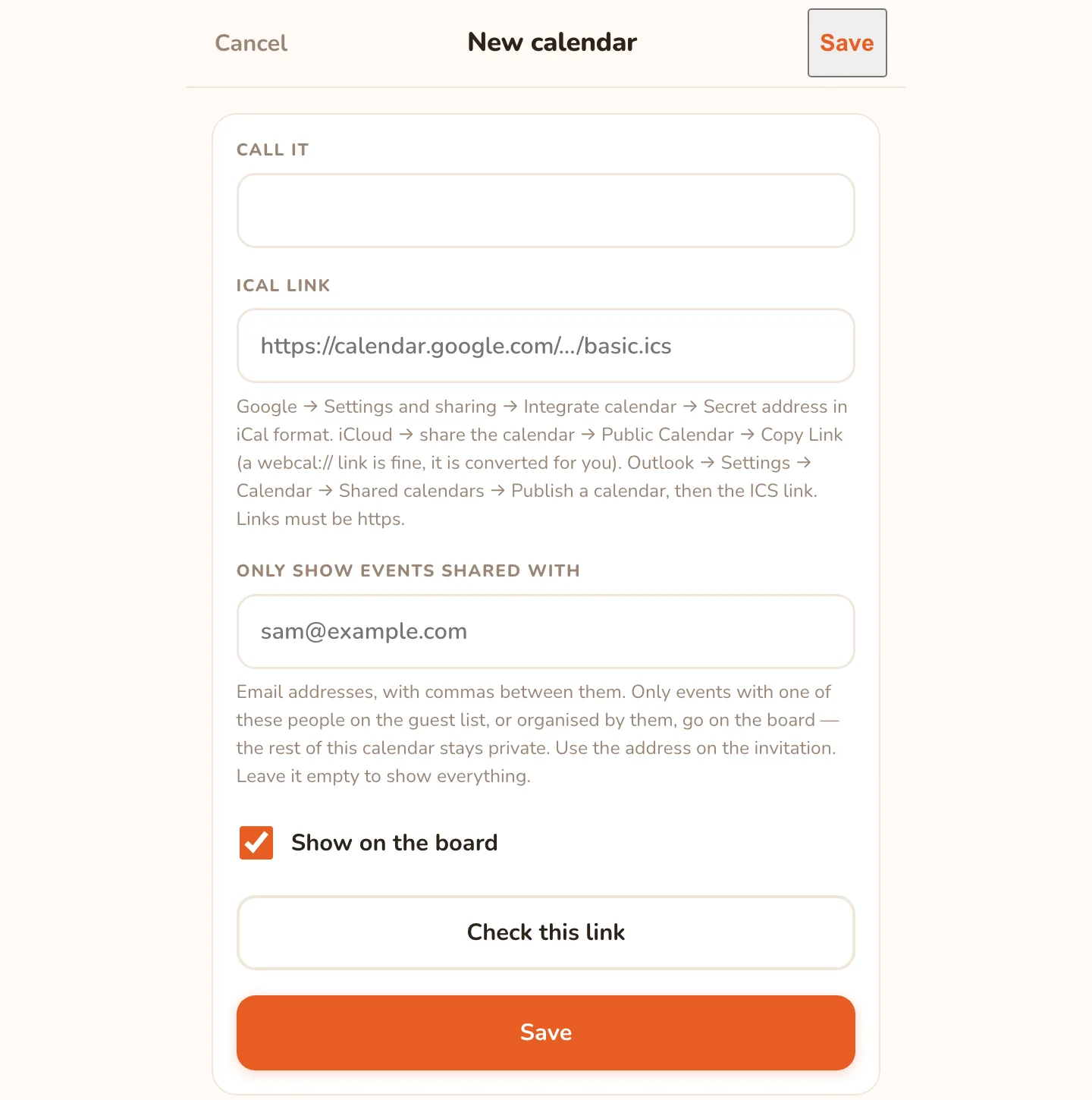
Point it at Cozi:
- Open Settings → Calendars → Add a calendar.
- Give it a name — "Cozi" or the child's name — and paste the URL into Calendar link (iCal / ICS).
- Press Test calendar link. It reports how many events it found and what the next one is, so you know it works before you save.
- Repeat for each family member's feed you shared.
Everything stays where it is. You keep adding events in Cozi on your phone, because the feed is read-only and a display can't write back to it. The screen just shows what Cozi already knows.
What the screen adds that Cozi doesn't
Cozi is good at capture — you type an appointment into your phone on the way out of school pickup. It's less good at the other half, which is everybody in the house knowing what is happening without asking a parent to unlock a phone.
A wall screen fills that half, and once it's up it does a few things Cozi has no place to show:
- A chore chart that rotates. List who is in the rota and it moves on one person a day, by itself. Nobody has to update a chart, and the screen — not a parent — is the one saying whose turn it is.
- Countdowns. Birthdays, Christmas, the school holidays. This is the feature children actually use, and it retires the "how many days until…" question.
- A headline. Written each day around the family's real day.
More on that combination on the digital calendar and chore chart page.
What it costs
Nothing, if you have a spare screen. DinkyDash is MIT-licensed and free to run yourself.
- A tablet or monitor you already own — $0. The cheapest way to find out whether the family will look at it.
- A Raspberry Pi and a small touchscreen — about $150 in parts, and the tidiest wall panel. The Raspberry Pi build guide has the parts list.
There's no subscription for the self-hosted version. The one running cost is the AI daily line, which is a Claude API call once a day — roughly $0.13 a month — and the dashboard works without it.
Compare that with a dedicated display: a Skylight Calendar is $299.99 to $599.99 plus an optional $79 a year, and a Hearth is $699 plus $9 a month. Prices checked 9 October 2026. Both are nicely made. Neither reads your Cozi calendar any better than a browser does. The full comparison is on the best digital family calendar page.
If Cozi isn't the only calendar in the house
Most families end up with more than one. Work is often in Outlook, the school sends an iCal subscription, and one parent lives in Google Calendar. All of them publish a link, and they all merge into a single agenda on the screen:
- Google Calendar — Settings → Integrate calendar → Secret address in iCal format
- Apple iCloud Calendar — turn on Public Calendar and copy the link
- Outlook and Microsoft 365 — publish the calendar, then take the ICS link
Start here
To skip the setup, start a free 14-day hosted trial and paste the link there. To run it yourself, the full setup guide starts on your own computer.
The code is on GitHub under an MIT licence.
Last updated 2026-10-09.