How to Get Your iCloud Calendar Link (Apple Calendar)
An iCloud calendar's sharing URL is behind the information icon next to the calendar's name. Switch on Public Calendar, press Copy, and the address is on your clipboard.
Here are the steps, then the three things about this link that surprise people.
Get the link
- Open iCloud Calendar in a browser and sign in with your Apple Account.
- Hover over the calendar in the left sidebar, then click the information icon (ⓘ) next to its name. On a tablet, tap the icon instead.
- Switch on Public Calendar.
- Press Copy.
The Calendar app on a Mac, iPhone or iPad has the same Public Calendar switch beside each calendar, and offers the link once it's on. The browser is easier if the link then has to go into something on a computer.
The address looks like this:
webcal://p00-caldav.icloud.com/published/2/xxxxxxxxxxxx
The real one has a long random string where the xxxx are, and the number after p varies
by which Apple server holds your calendar. Both are normal.
"Public" doesn't mean listed
This is the part worth understanding before you paste the link anywhere.
Apple doesn't publish your calendar to a directory, and it's not searchable. Nobody finds it by accident. But there's no sign-in on the other end — the long random string in the URL is what stands in for a password. Anyone holding the link reads that whole calendar, for as long as sharing stays on, and Apple gives you no way to see who has.
So: private enough to put on your own wall screen, not private enough to post in a group chat or leave in a screenshot.
To take it back, switch Public Calendar off. Everything pointed at that link stops working, and Apple emails anyone you shared it with to say so.
Why the link starts with webcal://
webcal:// is an old scheme whose only job is to tell your computer "hand this to a calendar
app, not a browser". Underneath it's an ordinary web address. Swap webcal for https and
it fetches the same file.
Most tools do that swap for you, so paste it exactly as Apple gives it to you and let the
other end sort it out. DinkyDash converts webcal:// to https:// on the way in and leaves
the rest of the address alone. What it won't accept is a plain http:// link: the address
is a password, and http would put it on the network in the clear.
When an old link stops working
An iCloud sharing link isn't permanent, and this catches people out months later.
Switching Public Calendar off and on again issues a different link. The old one is dead — not paused, dead. Same if the calendar is deleted and recreated, or recreated on a different Apple Account.
So a wall display that has shown your calendar happily since spring can go blank one morning because somebody turned sharing off and on while tidying up. The fix is always the same: go back to iCloud.com, copy the link that's there now, and paste the new one in.
One calendar per link
The link covers one calendar. A household with a personal calendar, a school calendar and a partner's calendar needs three, one from each. Tools that read them normally merge several into a single agenda — DinkyDash does, in time order, so the screen shows one day rather than three lists.
Repeat the steps for each calendar in the sidebar.
Put it on a screen
The reason to fetch the link is to get the calendar somewhere the whole family sees it, without anybody having to unlock a phone.
Which screen? An old iPad or an Android tablet is the cheapest good panel, a Raspberry Pi the tidiest, and a smart TV or Fire TV will show it on the big screen. There's one device it doesn't work on, and the Echo Show page says why.
DinkyDash is open-source software that does exactly that. We can host it for you ($39 a year after a 14-day free trial), or you can run it yourself for free. Paste the link and today's events appear on a wall screen, next to a chore chart that rotates by itself, countdowns to birthdays and holidays, and a headline written fresh each day. There's no Apple sign-in anywhere in it — the link is the entire connection, and it can only read.
To add it:
- Open Settings → Calendars → Add a calendar.
- Give it a name and paste the address into Calendar link (iCal / ICS). A
webcal://link is fine. - Press Test calendar link. It reports how many events it found and what the next one is, so you know before you save.
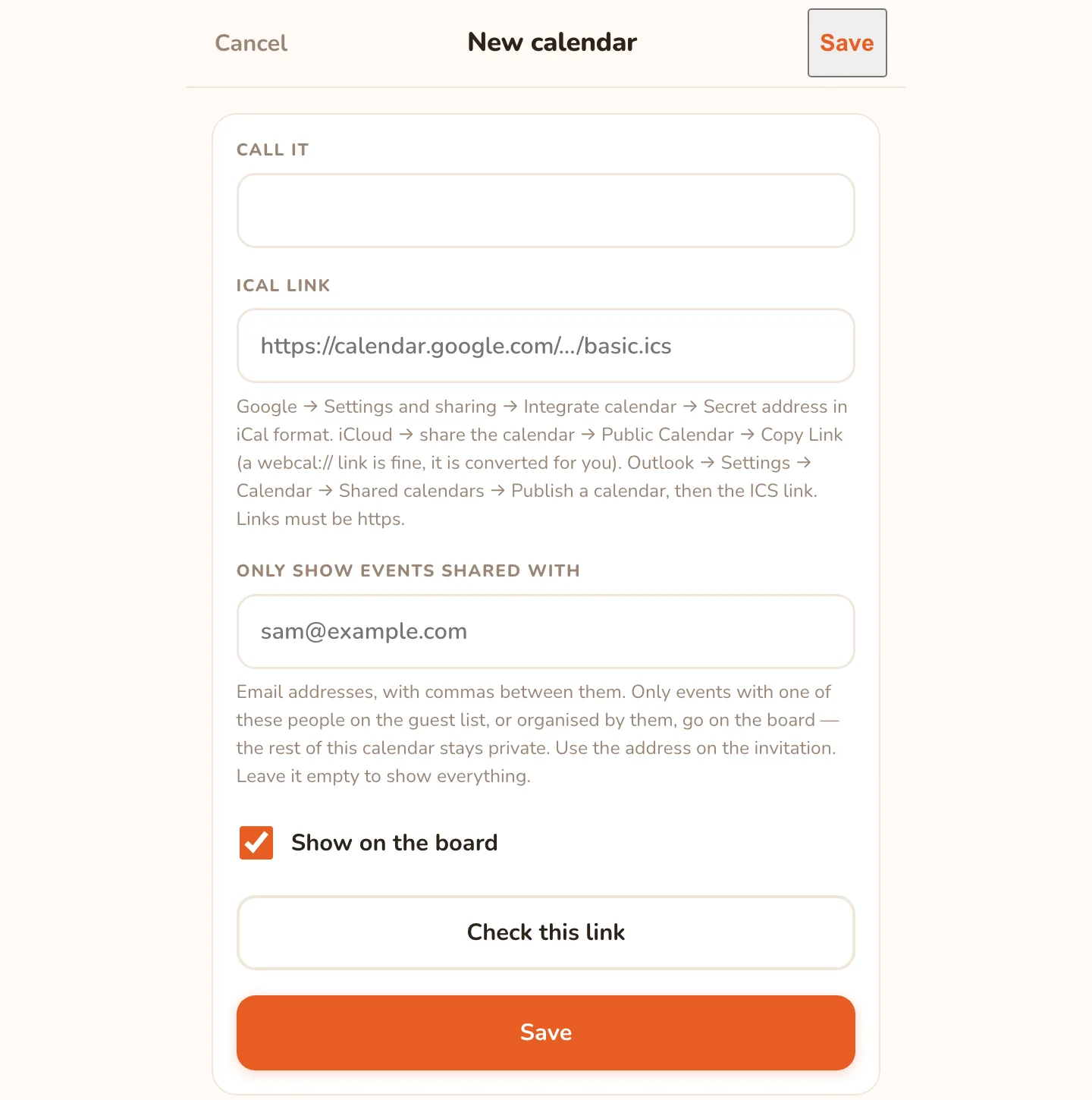
If the calendar you're pasting also holds work meetings, fill in Only show events shared with and give the other parent's email address. Only events they are invited to reach the screen; the rest are dropped as soon as the calendar is read, and are never stored or sent on. The getting started guide covers that properly.
Other calendars
- Google Calendar — Settings → Integrate calendar → Secret address in iCal format
- Outlook and Microsoft 365 — publish the calendar, then take the ICS link
- Cozi — Settings → Shared Cozi Calendars
Mix providers freely; they all end up as one agenda. To skip the setup, start a free 14-day hosted trial and paste the link there. To run it yourself, the full setup guide starts on your own computer.
Last updated 2026-10-09.