Raspberry Pi Family Calendar: Build a Wall Dashboard That Updates Itself
A Raspberry Pi, a small touchscreen and some open-source software make a genuinely good family calendar: it hangs on the kitchen wall, shows today's schedule at a glance, keeps itself up to date, and costs about $120–185 in new parts, and about $0.13 a month for the headline.
This page covers the hardware side — which Pi, which screen, what it draws, what it costs. The full setup guide has the copy-paste commands.
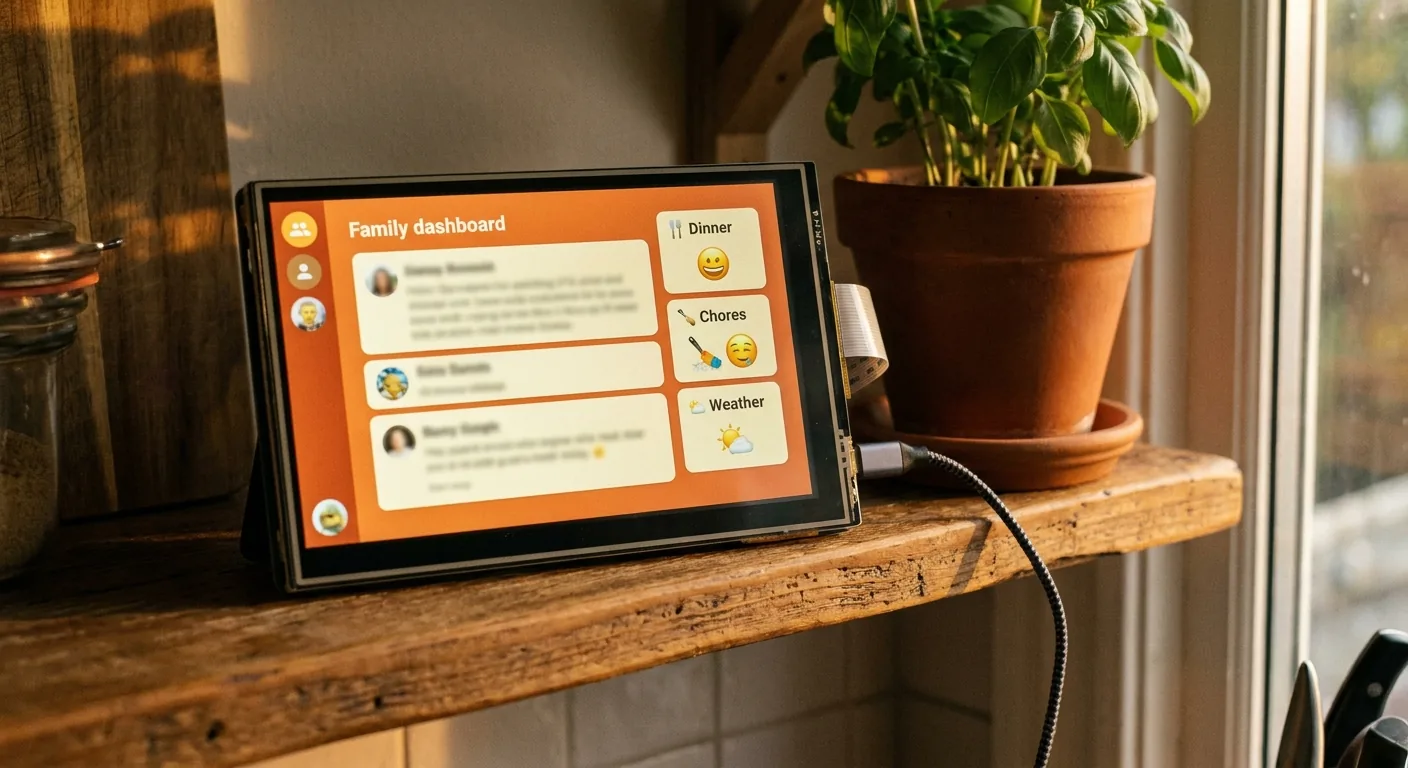
What ends up on the screen
DinkyDash is a free, open-source, MIT-licensed family dashboard built for exactly this. On the display you get:
- Today's events, pulled from Google Calendar or any calendar with an iCal link — Google, iCloud, Outlook and Cozi each have one
- A chore chart that rotates between family members automatically each day
- Countdowns to birthdays, holidays and the dates everyone keeps asking about
- A daily message written by Claude — a fresh headline every day, written around your actual family
No touch interaction is required. It's a display, not an app — which is the point, and also why a modest Pi is plenty.
If you haven't ordered parts yet, the birthday countdown is one panel of this running in a plain browser tab — a fair preview of what a wall screen feels like, on a screen you're already looking at.
A Pi isn't the only screen this runs on, and it's not the cheapest. The same dashboard goes on an old iPad, an Android tablet, a smart TV or a Fire TV — and not, for one specific reason, on an Echo Show. A Pi is the tidiest permanent panel; a tablet is the quickest way to find out whether your family looks at one at all.
Which Raspberry Pi
| Model | Verdict |
|---|---|
| Pi 4 (2GB) | The sweet spot. Runs Chromium in kiosk mode comfortably, cheap, widely available second-hand. This is what we'd pick. |
| Pi 5 | Works fine and boots faster, but it's more money and more heat for a job that's mostly idle. Overkill here. |
| Pi Zero 2 W | Tempting at the price, but Chromium is a heavy browser and the Zero struggles. Workable if you're patient; frustrating if you're not. |
| Pi 3 | Fine if you already own one. Slow to boot, but it only boots once. |
2GB of RAM is enough. The dashboard is a single static page that refreshes every five minutes — there's no database and no continuous rendering.
Which display
The software targets 800×480, which is the resolution of the official Raspberry Pi 7″ Touch Display. That's the path of least resistance.
- Official 7″ Touch Display — connects over DSI (one ribbon cable, no HDMI), powered from the Pi itself. Around $60–80.
- Any HDMI monitor — works, and a bigger screen reads better from across a room. You'll want to adjust the layout, and you're now managing two power supplies.
- An old monitor you already own — free, and honestly the best way to test whether your family will actually look at it before you spend anything.
Touch is optional. The dashboard is read-only by design; you edit events in Google Calendar on your phone, the way you already do.
Parts list
| Part | Approximate cost |
|---|---|
| Raspberry Pi 4 (2GB) | $45–60 |
| Official 7″ Touch Display | $60–80 |
| MicroSD card (16GB+) | $8–12 |
| USB-C power supply | $8–12 |
| Case or stand | $0–20 |
| Total | ~$120–185 new, well under $100 with parts you own or buy used |
Prices are approximate and vary by retailer — checked August 2026.
Second-hand Pis are abundant and this workload will never stress one, so the used market is a genuinely good idea here.
How it actually works
The architecture is deliberately boring, which is why it keeps running:
- A cron job ticks every five minutes and does only what's due: it re-fetches your calendars every hour, and once a day, at a time you pick (06:00 by default), it sends the day's agenda to the Claude API for the headline. Both are saved to a JSON file.
- A small Flask server reads that file and renders the page, working out ages, countdowns and whose turn each chore is from the date as it goes.
- Chromium launches fullscreen at boot in kiosk mode and refreshes every five minutes.
The API call happens once a day, not on every page load. That matters for two reasons: the dashboard stays instant because nothing waits on the network, and your Anthropic bill is about $0.13 a month.
If the network drops or the API call fails, the last calendar fetch is still on disk and reaches two weeks ahead, so today's agenda, turns and countdowns stay right. The headline falls back to one worked out from the day, and the dashboard says so. It never goes blank.
Power draw and leaving it on
A Pi 4 with the 7″ display sits under 10 watts. Left on around the clock that's roughly 60 kWh a year — call it $10 at typical US rates.
You can cut that roughly in half with two cron lines that switch the display off overnight and back on before breakfast:
0 22 * * * /home/pi/screen_control.sh off
0 7 * * * /home/pi/screen_control.sh on
The Pi stays up; only the panel sleeps. The setup guide has the script.
Kiosk mode
The one part people usually get wrong is the boot sequence: Chromium starts before Flask is ready and you get "localhost refused to connect" on the wall every morning. The startup script in the setup guide polls the server for up to 60 seconds before launching the browser, which fixes it.
Two other things worth knowing before you start:
- Install
fonts-noto-color-emoji, or the dashboard renders as empty boxes. - On Raspberry Pi OS Bookworm the boot config lives at
/boot/firmware/config.txt, not/boot/config.txt— this trips up a lot of older tutorials.
Both are covered, with fixes, in the troubleshooting section.
Why build one instead of buying
A Skylight Calendar Max is $599.99, plus $79 a year for the Plus features. A Hearth Display is $699 plus $9 a month. They're nicely made, and if you want something that works out of the box with a support line, they're reasonable purchases. Prices checked 9 October 2026.
But a digital family calendar is fundamentally a screen showing a web page. If you're comfortable with a terminal, the Pi version costs about a quarter as much, has no subscription, keeps your family's data on your own device, and does one thing the $600 hardware doesn't: writes you a fresh daily message every day.
The full cost comparison is on the DIY Skylight calendar page.
Start building
Everything you need is in the setup guide — install, config, cron, systemd service and kiosk mode, with the commands to copy. Budget an evening for the first build.
The code is on GitHub under an MIT licence. Stars and issues welcome.
Weighing this up against DAKboard or MagicMirror² on the same Pi? We compared them on price, self-hosting and licence on the DAKboard alternatives page.
Want the dashboard without the Pi? Start a free 14-day hosted trial, no card required.
Last updated 2026-10-09.