Turn an Old iPad Into a Family Calendar Display
Yes — an old iPad is the best cheap family calendar display there is. It has a good screen, it charges over one cable, it already sits flat against a wall, and iOS has both settings you need built in: a screen that never sleeps, and a lock that keeps everyone on one page.
Here's the whole setup. The software's open source: free to run yourself, or $39 a year if we host it.
What you need
DinkyDash is a web page, not an app you install. So there are two parts:
- Something to serve it. A Raspberry Pi or an old computer on your Wi-Fi — free, MIT licensed, and about an evening's work. Or start a free 14-day hosted trial, no card required.
- The iPad, which is the screen. It opens that address in Safari.
Nothing goes through the App Store, and there's no Apple ID to sign in to.
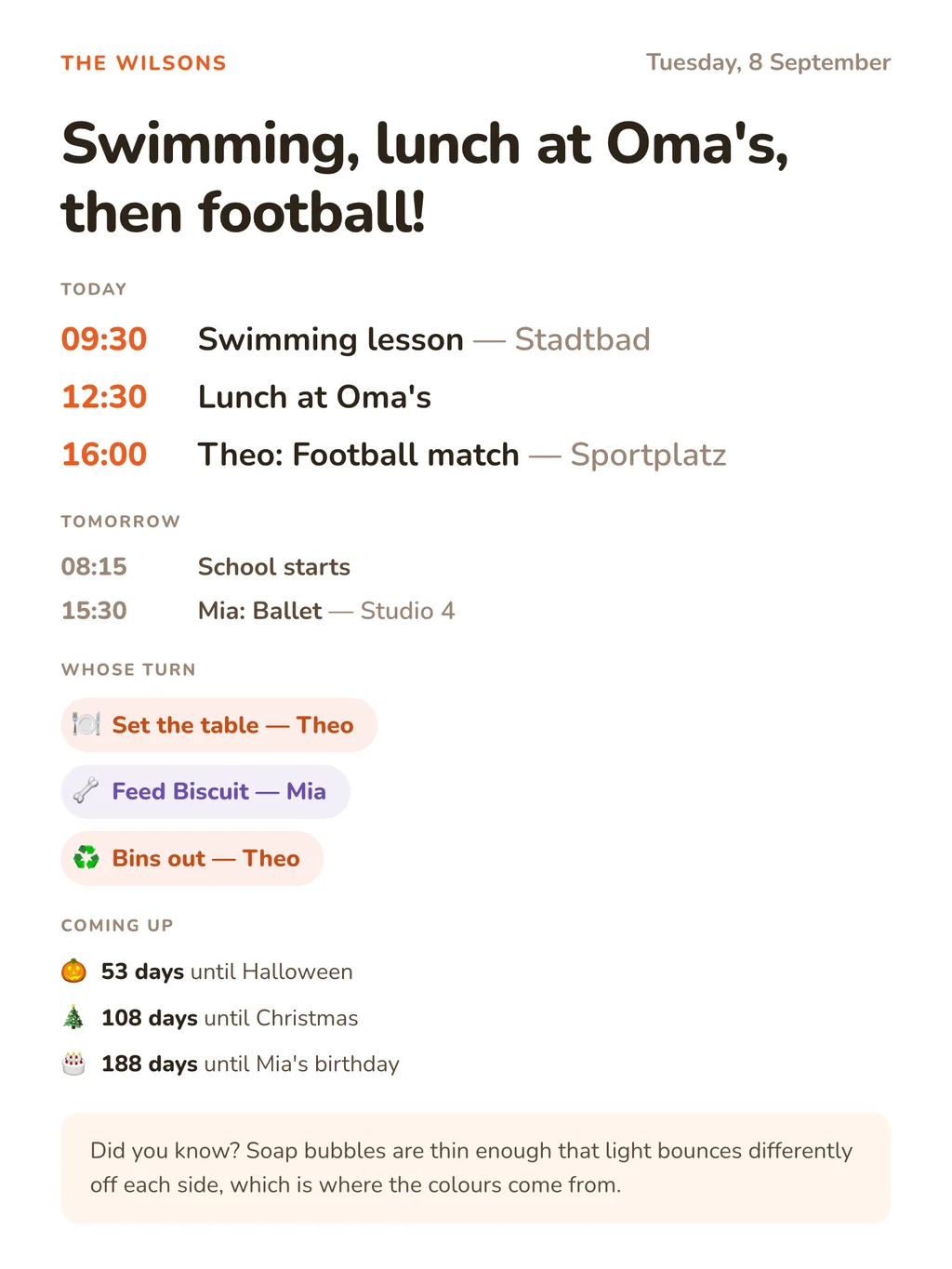
Portrait or landscape both work. The dashboard is a single column on a tall screen and two columns on a wide one — it decides from the shape of the display, so an iPad standing upright looks like the picture above and one lying on its side splits into two.
Set it up
1. Open the dashboard in Safari. If we host it, that's the screen link under Settings → The screen, where there's a QR code too, so you don't have to type it. If you run it yourself, it's the address of the machine serving it on your network, something like http://192.168.1.50:5000.
2. Add it to the home screen. Share button, then Add to Home Screen. This is the step that matters: launched from the home screen the dashboard runs full screen, with no address bar and no Safari furniture, and it gets the DinkyDash icon and your family's name under it.
3. Stop the screen sleeping. Settings → Display & Brightness → Auto-Lock → Never. On some iPads Never only appears while the iPad is charging, which is fine — a wall panel is plugged in permanently.
4. Lock it to the page. Settings → Accessibility → Guided Access, switch it on and set a passcode. Then open the dashboard and triple-click the top button. The iPad now stays on the dashboard until somebody triple-clicks and types the passcode — which is what stops a five-year-old ending up in Settings.
5. Leave it plugged in. A right-angled cable and an adhesive wall mount are the usual answer. Turn the brightness down to about a third; it's a glanceable panel, not a film.
Two things worth knowing
The battery will age. Permanently charging is harder on a battery than normal use. For a wall panel it barely matters — the iPad is on mains power, so a tired battery only shortens how long it survives a power cut. An iPad old enough to be doing this job is past the point where its battery mattered.
Very old iPads lose some spacing. The dashboard leans on one modern CSS feature — flexbox
gap, which arrived in Safari 14 — for the space between blocks. On anything older the dashboard
still renders and still updates itself; the blocks just sit closer together than they should.
Nothing is hidden and nothing breaks.
What ends up on the screen
- Today's events, merged from every calendar you add: Google, iCloud, Outlook and Cozi each publish a link, and each has its own page here with the steps.
- A chore chart that rotates, moving on one person a day by itself.
- Countdowns to birthdays, Christmas and the school holidays.
- A headline, written fresh each day by Claude, around your family's actual day.
The dashboard refreshes itself every five minutes. If the Wi-Fi drops, it keeps the last dashboard on screen with a small "Reconnecting" note rather than an error page, and catches up when the connection returns; with JavaScript switched off it falls back to a plain HTML refresh. There's nothing to tap and nothing to maintain — you keep editing events in your normal calendar app, and the wall follows.
What it costs
Nothing, if the iPad is already in a drawer. DinkyDash is free and MIT licensed with no subscription for the self-hosted version. The one running cost is the headline, which is a Claude API call once a day — roughly $0.13 a month — and the dashboard works without it.
For comparison, a Skylight Calendar is $299.99 to $599.99 plus an optional $79 a year. Prices checked 9 October 2026. The best digital family calendar page has the full comparison.
Other screens
- Android tablet — the same idea, and old ones are cheaper
- Raspberry Pi — the tidiest permanent panel, about $150
- Smart TV — works, but the screensaver fights you
- Fire TV — for the living-room television
- Echo Show — the one that doesn't work, and why
Start here
The setup guide covers the other half: getting DinkyDash running, adding your calendars, and pointing the iPad at it. The code is on GitHub under an MIT licence.
Rather skip the setup? Start a free 14-day hosted trial, no card required.
Last updated 2026-10-09.